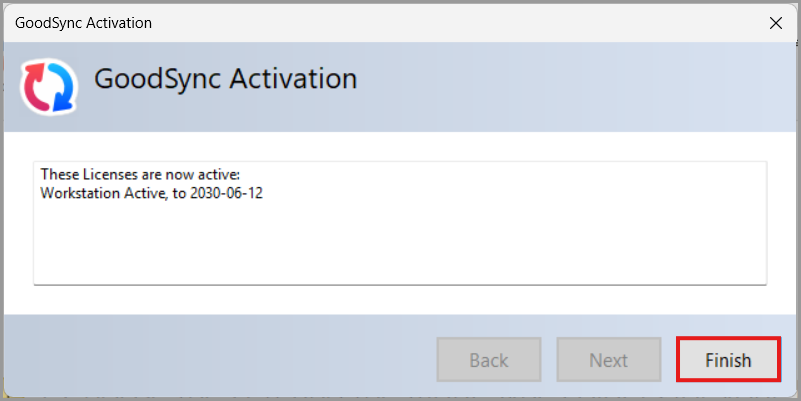
This article explains how to activate GoodSync Enterprise licenses on Windows computers using either online activation or offline activation.
Use Online Activation when the computer running GoodSync has internet access.
Use Offline Activation when the computer running GoodSync does not have internet access or cannot reach GoodSync activation servers.
Before You Begin
Before activating GoodSync, make sure the following requirements are met:
- GoodSync is installed on the Windows computer.
- You are using the correct Enterprise installer for your license type:
- You have a GoodSync account.
- Your Enterprise license has been added to your GoodSync account.
- For offline activation, you have access to a second computer with internet access.
You will also need a GoodSync account to activate your installation. If you do not have a GoodSync account yet, review our tutorials for account creation.
Make sure that you have added your purchased licenses to your GoodSync account. If you have not, see our tutorial on how to add licenses to your account.
Online Activation
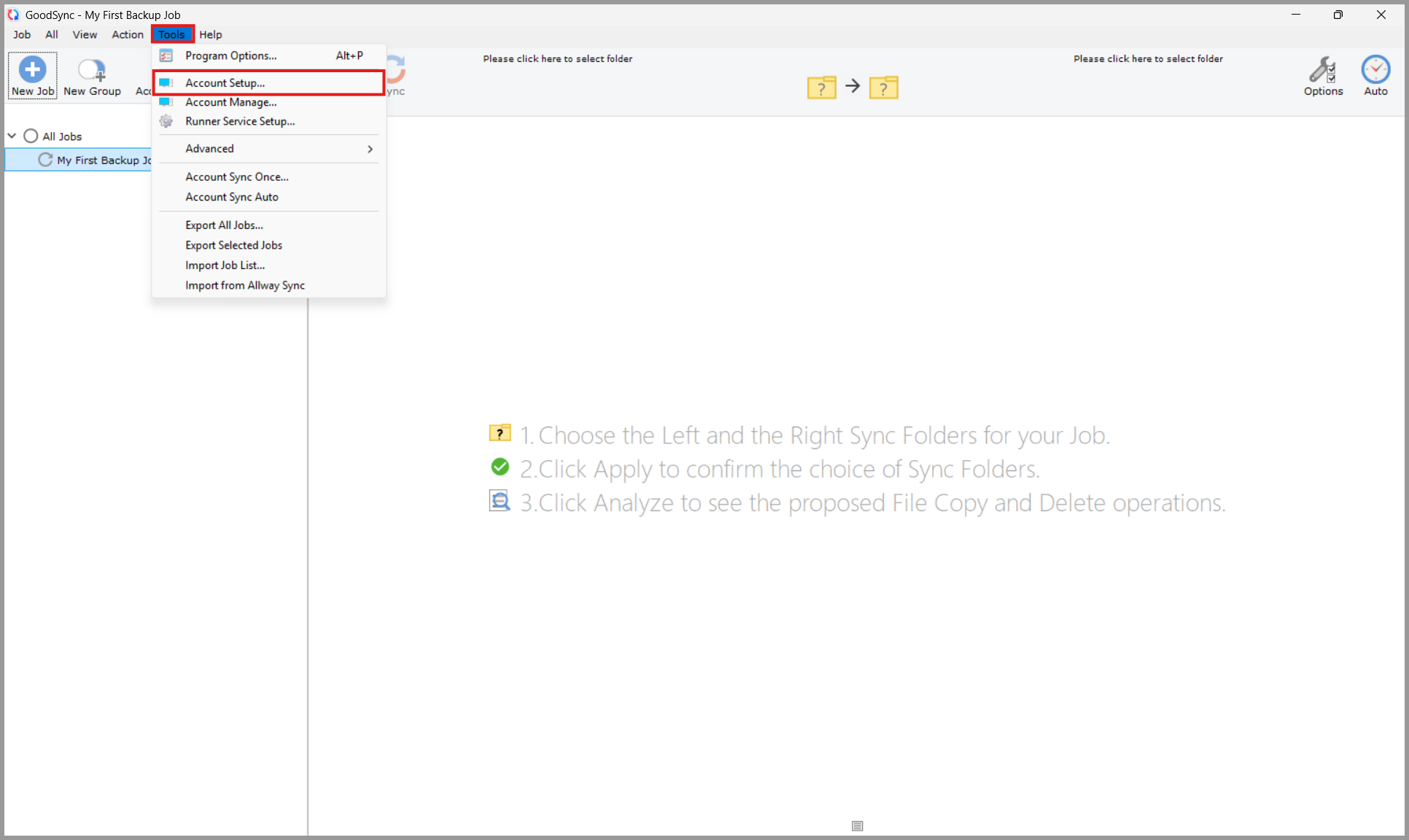
1) Open GoodSync. From the top menu, click "Tools" >> "GoodSync Account Setup."
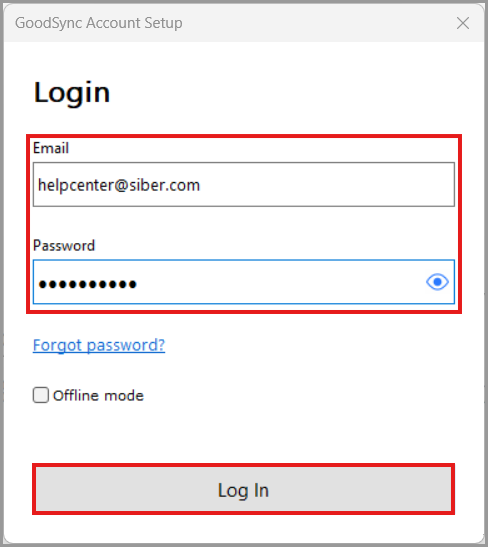
2) Enter your GoodSync account email address and password.
Make sure "Offline mode" is not selected. Click "Log In."
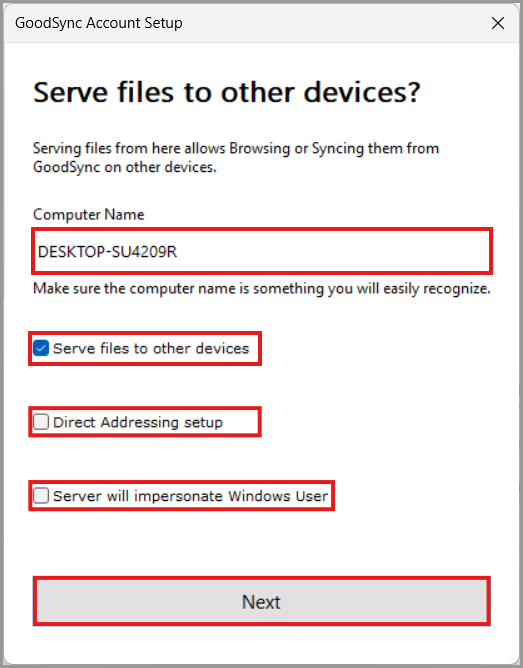
3) Enter or confirm the computer name. Review the available setup options:
"Serve files to other devices": When unchecked, GoodSync acts as a client. This computer can make outgoing connections but does not accept incoming connections from other GoodSync devices.
When checked, GoodSync acts as a server. Other GoodSync devices can connect to this computer and access data allowed by the GoodSync Server configuration.
"Direct Addressing setup": Use this option when this computer should be accessed directly by IP address or hostname.
"Server will impersonate Windows User": Use this option when GoodSync Server must run operations as a specific Windows user. This may be needed to access encrypted folders, network shares, or user-specific resources.
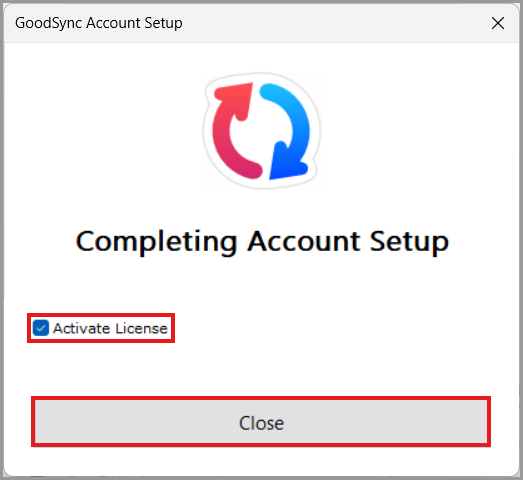
4) Select "Activate License." Click the "Close" button to finish.
Offline Activation
Use these steps if the computer running GoodSync does not have internet access.
Offline activation requires two computers:
- The offline computer where GoodSync is installed.
- An online computer that can access your GoodSync account through a web browser.
Part 1: Start Offline Account Setup in GoodSync
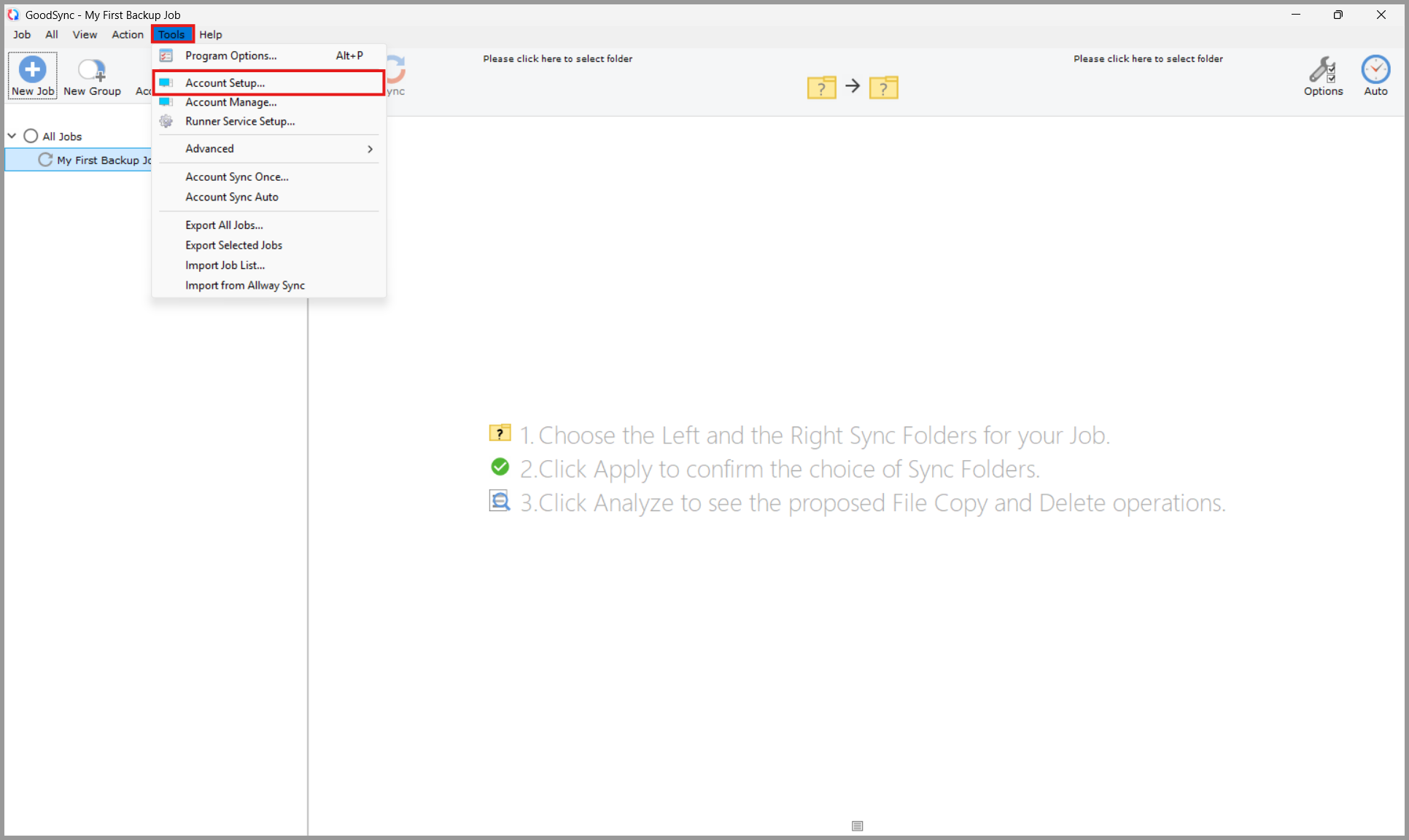
1) Open GoodSync. From the top menu, click "Tools" >> "GoodSync Account Setup."
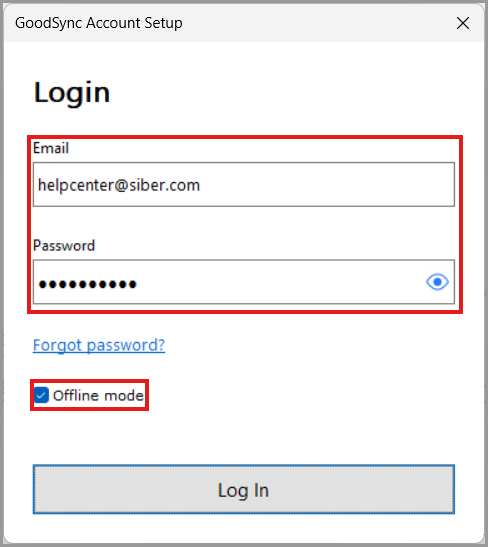
2) Enter your GoodSync account email address and password.
Select "Offline mode."
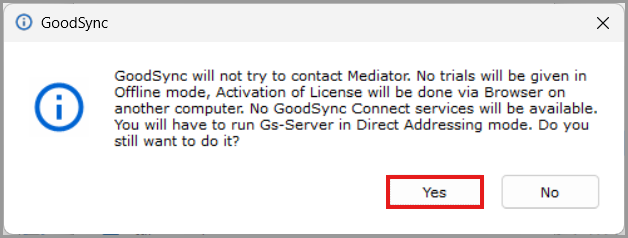
Note: GoodSync will display a confirmation prompt explaining that it will not contact the Mediator and that activation must be completed using a browser on another computer.
Click "Yes" to continue with Offline Activation.
Click "Log In."
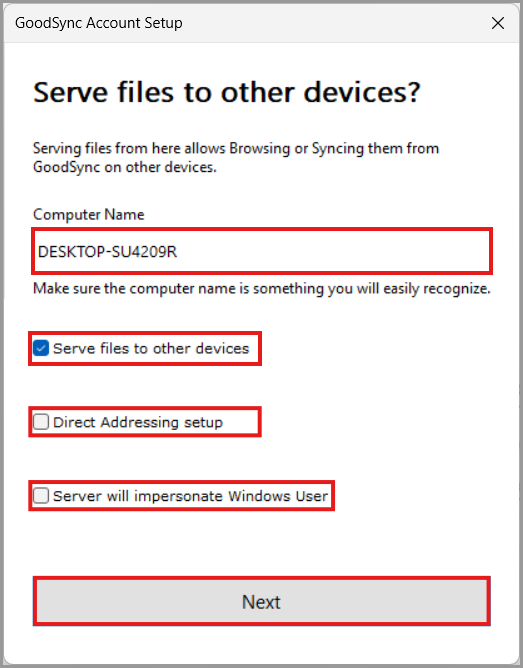
3) Enter or confirm the computer name. Review the available setup options.
"Serve files to other devices": This option is not available for Offline Activation unless Direct Addressing is configured.
If Serve files to other devices is selected while Offline mode is enabled and Direct Addressing is not configured, GoodSync will display the following warning:
"You cannot Serve Files in Offline Mode + Mediator Mode, so turn on Direct Addressing."
Click OK to close the warning.
To continue with Offline Activation, either:
- Leave the Serve files to other devices unchecked, or
- Enable Direct Addressing setup if this computer must serve files to other GoodSync devices.
When Serve files to other devices is checked, GoodSync acts as a server. Other GoodSync devices can connect to this computer and access data allowed by the GoodSync Server configuration.
"Direct Addressing setup": Use this option when this computer should be accessed directly by IP address or hostname.
For Offline Activation, Direct Addressing is required if Serve files to other devices is enabled.
"Server will impersonate Windows User": Use this option when GoodSync Server must run operations as a specific Windows user. This may be needed to access encrypted folders, network shares, or user-specific resources.
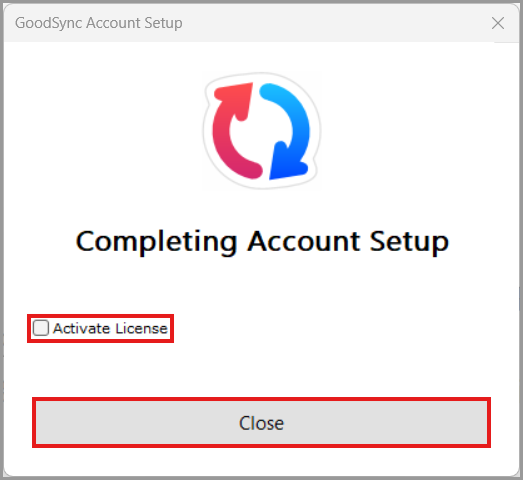
4) Uncheck "Activate License." Click the "Close" button to finish.
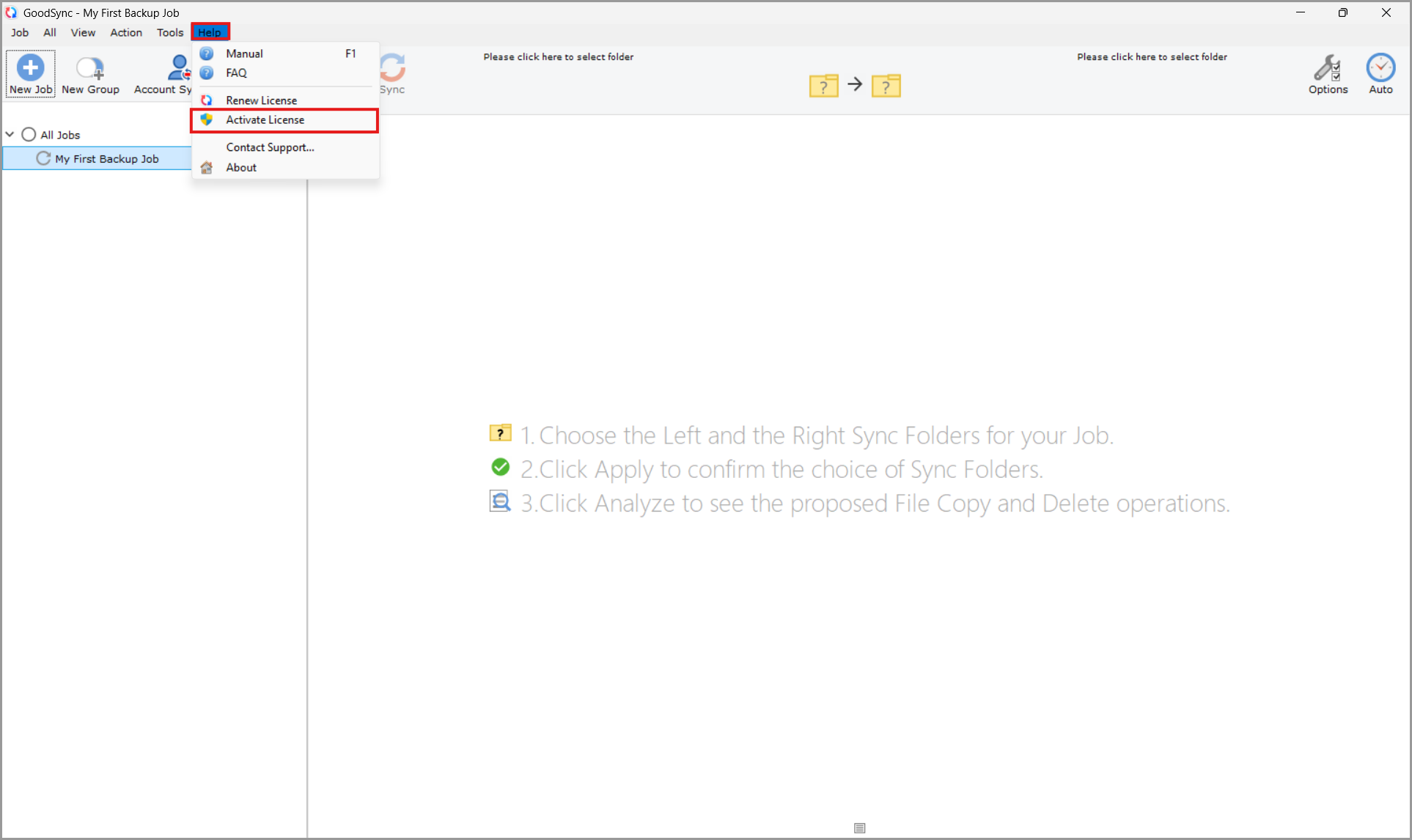
5) Click on "Help" >> "Activate License" menu item.
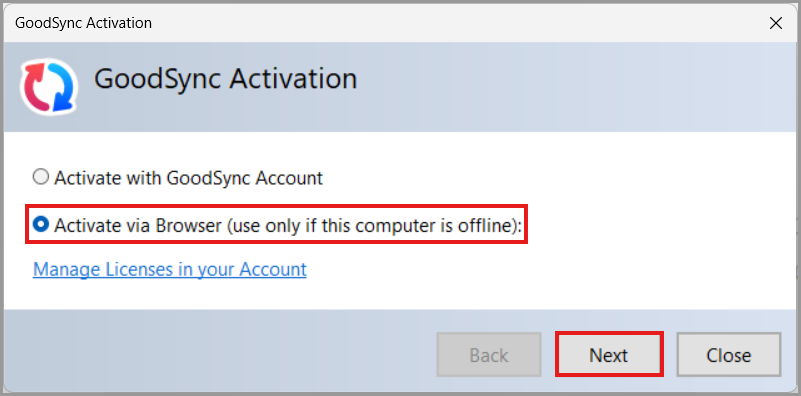
6) Select the "Activate via Browser (use only if this computer is offline)" option. Then, click the "Next" button.
7) GoodSync will generate an offline Activation Request. Click the "Copy" button to copy it to your clipboard.
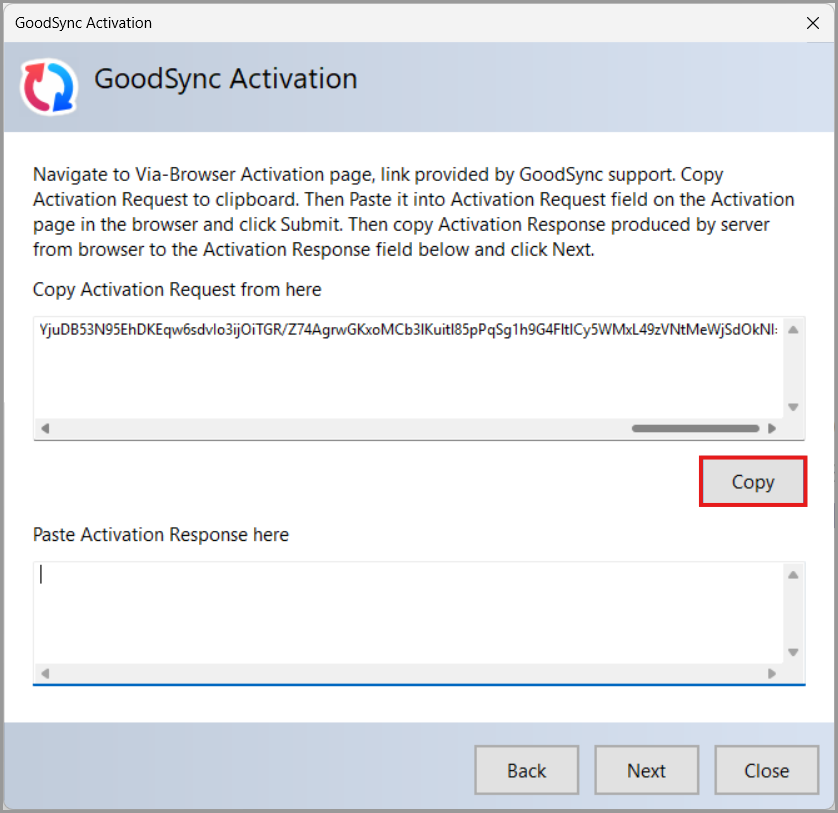
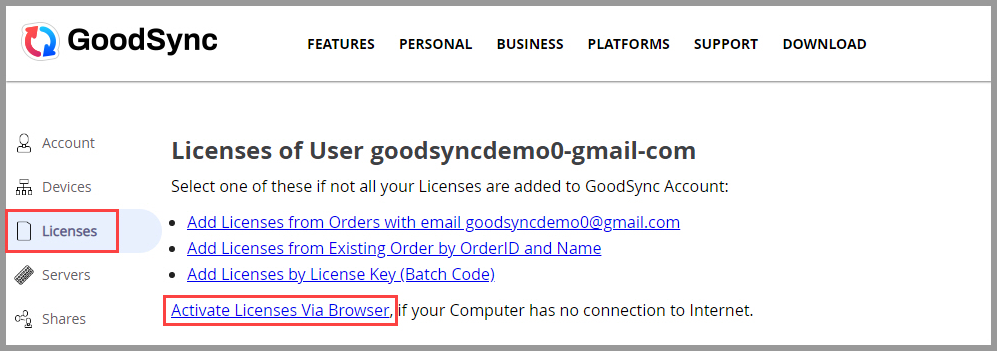
8) Navigate to a computer with internet access and log in to your GoodSync account. Once logged in, click on the "Licenses" tab. Then, click on "Activate Licenses Via Browser."
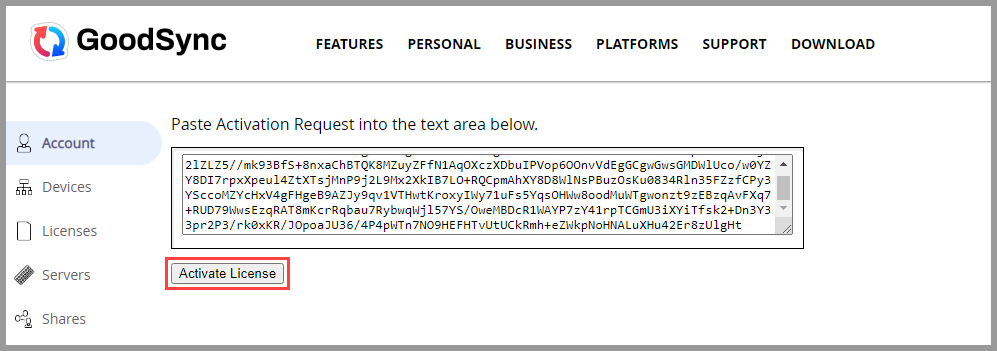
9) Enter the offline Activation Request obtained from the GoodSync application into the field below and click "Activate License."
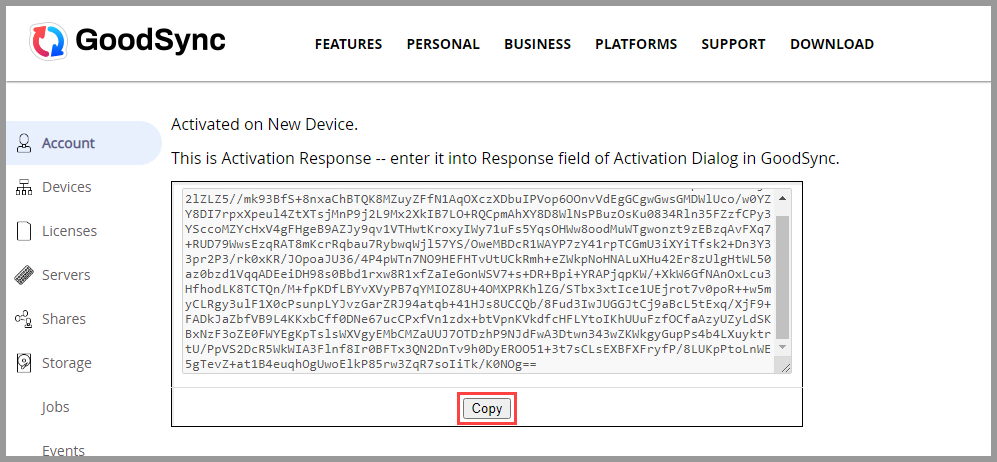
10) Activation Response will be returned to you. Click "Copy" to copy the Activation Response, take it to the device you are looking to activate and paste it into the empty box in the activation window. Then, click "Next."
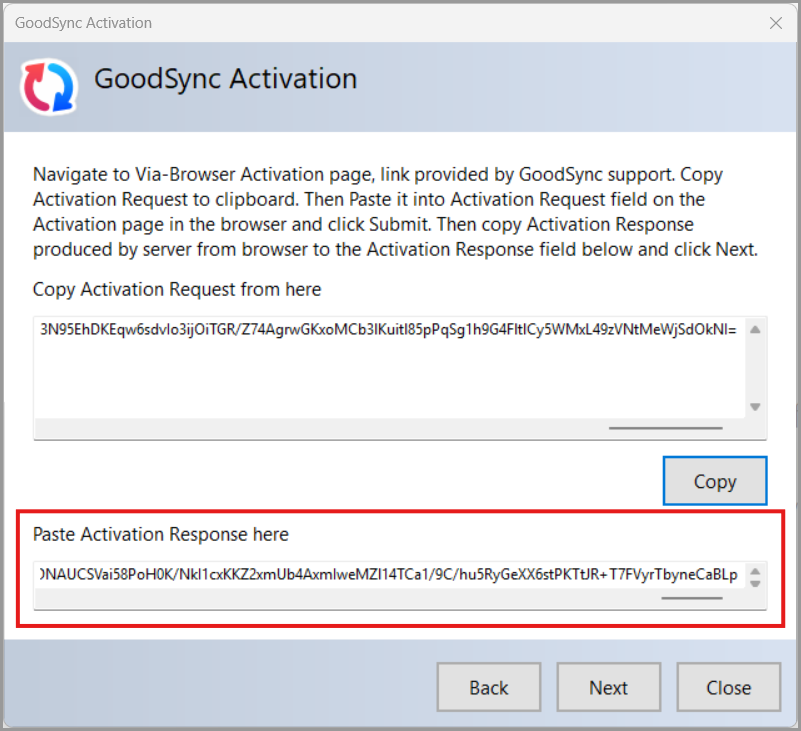
11) The activation is now complete. Click the "Finish" button.