Your GoodSync Account is used to:
- Manage your GoodSync licenses, register and activate devices.
- Use GoodSync Transfer Protocol (GSTP) to connect your devices.
- Use GoodSync Cloud Storage (GSCS) to store your files.
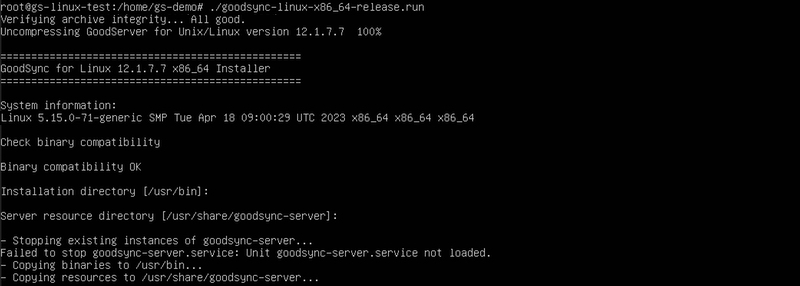
1) Download and run the GoodSync installer for Linux. Read our step-by-step installation tutorial here.
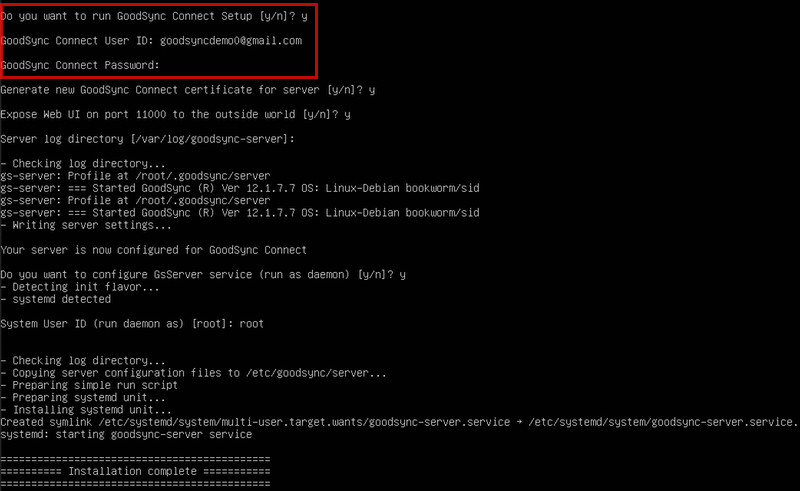
2) When prompted, confirm that you want to run GoodSync Connect Setup and enter the credentials of your GoodSync Account. If you have not created one, check out our GoodSync Account Creation tutorial articles.
Follow the installation steps to configure your GoodSync installation. Once installation is complete, you will see a confirmation.
3) Now, you can connect to your Linux machine from other GoodSync devices. A Windows machine is used in this example, but Mac and Linux may be used as well.
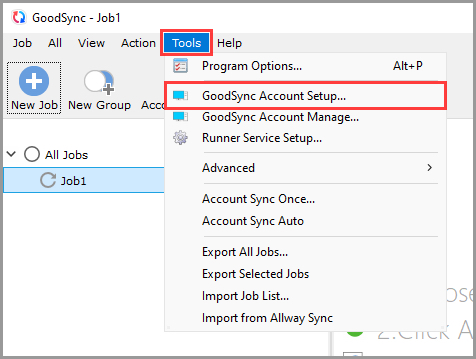
From the connecting computer, ensure you are logged in with the same GoodSync Account. You can do so by selecting the "GoodSync Account Setup" item from the "Tools" menu in the top left.
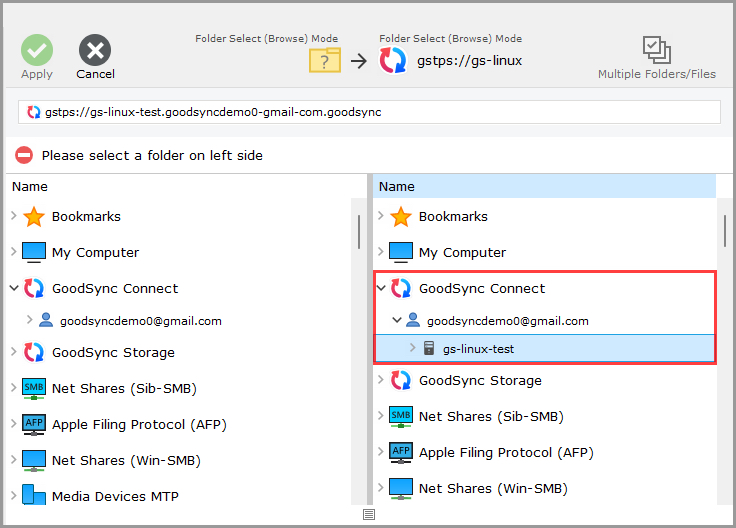
4) Next, choose "GoodSync Connect" for your source or destination. You will now see your Linux machine and other devices registered to your GoodSync account listed.