GoodSync supports the ability to backup and encrypt or decrypt data to a destination folder using AES256 encryption.
During a backup and encryption Job, GoodSync takes any unencrypted data from a specified source folder and replicates this data to a destination in encrypted form.
During a backup and decryption Job, GoodSync takes any encrypted data from a specified source folder and replicates this data to a destination in unencrypted form.
This function is available in one-way backup jobs.
Encryption
To perform encryption, you must set the encryption password to the destination folder. To do this, follow these steps:
1) Open GoodSync and select or create your Backup Job.
2) Click the Left or Right Browse buttons to view the files and folders available for selection.
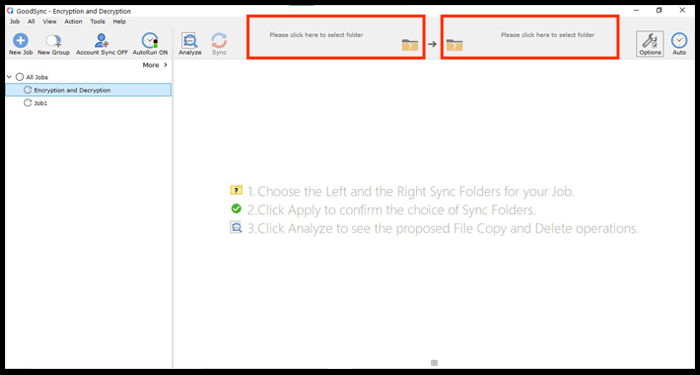
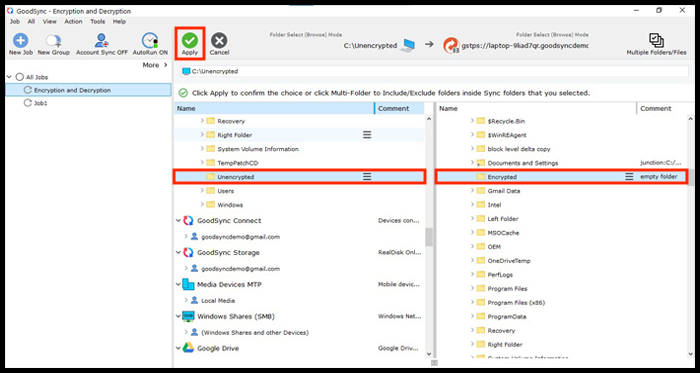
3) If you have not already, set your source folder as the folder which contains the files you wish to encrypt, and set your destination folder as the folder you wish to store your newly encrypted files in. Then, click the "Apply" button.
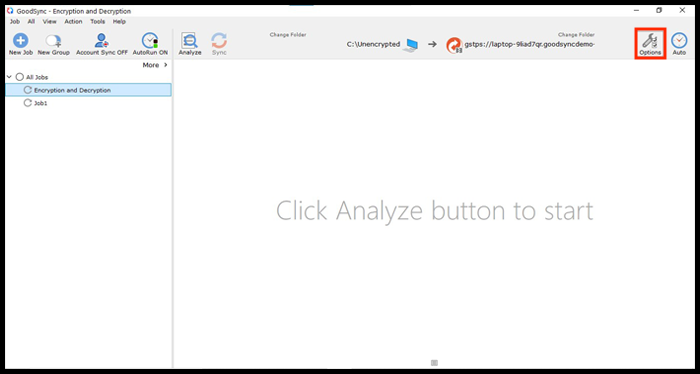
4) Click the "Options" button in the upper right corner.
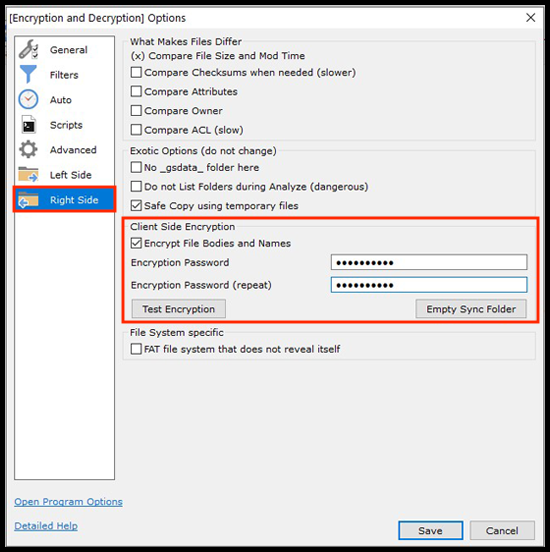
5) From the column on the left, select the side of your destination folder (either Left Side or Right Side).
6) At the bottom of the Left Side/Right Side options menu, check the box marked "Encrypt File Bodies" and provide the desired encryption password in the designated fields. Ensure you click the "Test Encryption" button to confirm that the encryption is enabled. Then, click the "Save" button.
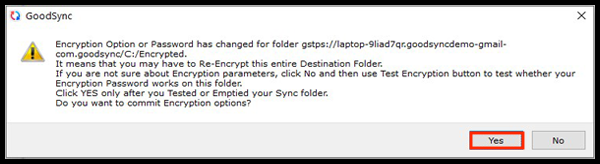
You will receive a message from GoodSync asking you to confirm that you have tested the encryption. Click the "Yes" button.
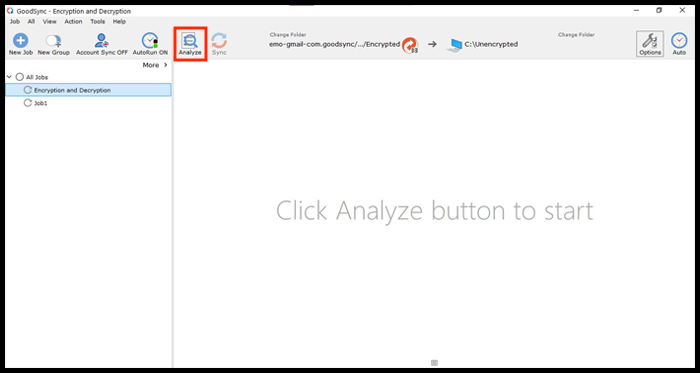
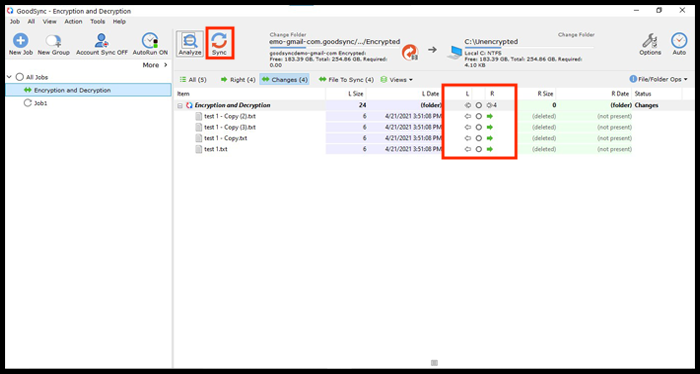
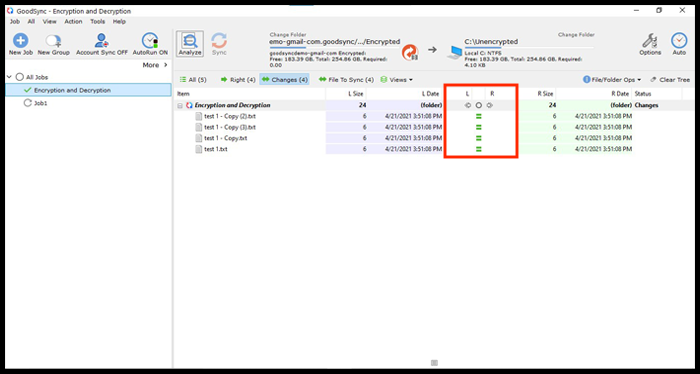
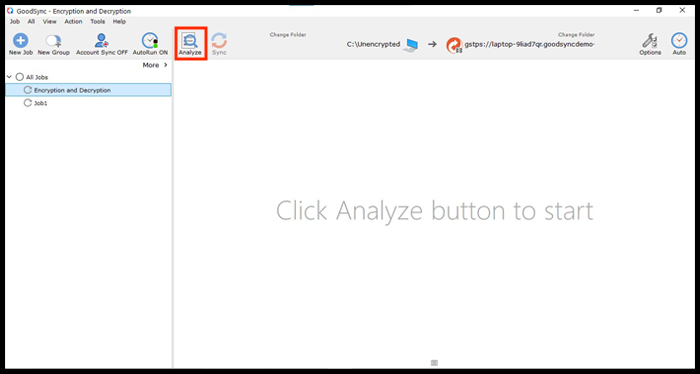
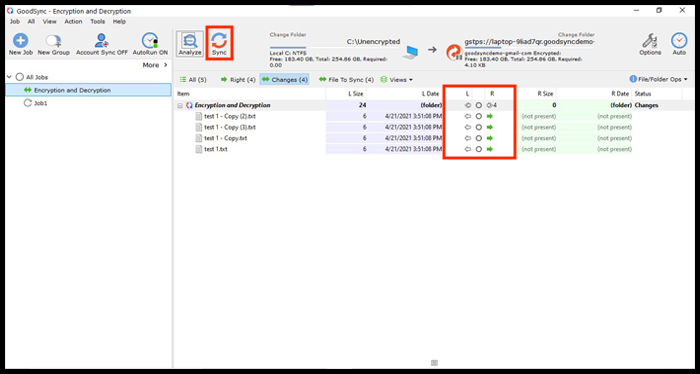
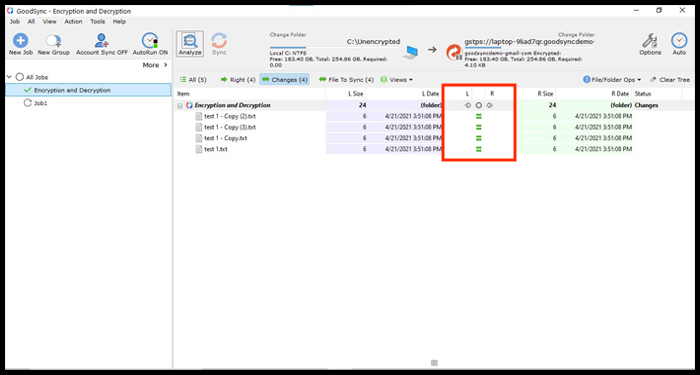
7) Click "Analyze" to confirm what changes will be applied and "Sync" to run the Job. When the Job runs, it will back up and encrypt the data to the target folder.
Decryption
To perform decryption, ensure that the password is set to the source folder containing the encrypted contents. To do this, follow these steps:
1) Open GoodSync and select or create your Backup Job.
2) Click the Left or Right Browse buttons to view the files and folders available for selection.
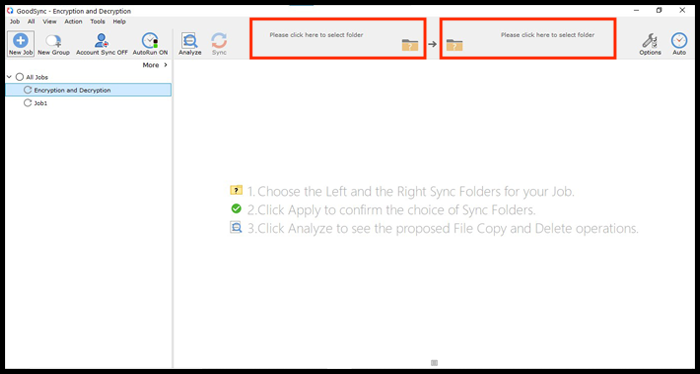
3) Set your source folder as the folder which contains the files you wish to decrypt, and set your destination folder as the folder you wish to store your newly decrypted files in. Then, click the "Apply" button.
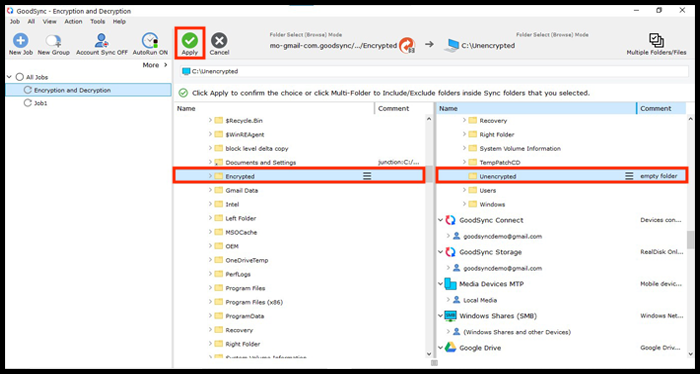
4) Click the "Options" button in the upper right corner.
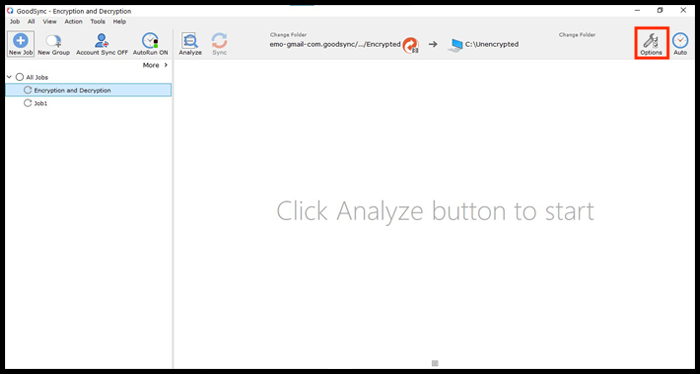
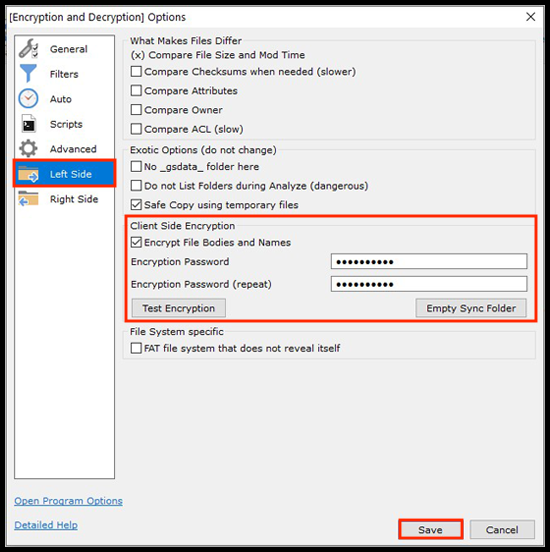
5) From the column on the left, select the side of your source folder containing the files you wish to decrypt (either Left Side or Right Side).
NOTE: If you are confused on which side to pick:
If the job is a left-to-right backup, and the left folder is the source containing encrypted contents, set the password in the Left Side tab.
If the job is a right-to-left backup, and the right folder is the source containing encrypted contents, set the password in the Right Side tab.
6) At the bottom of the Left Side/Right Side options menu, check the box marked "Encrypt File Bodies" and provide the desired encryption password in the designated fields. Ensure you click the "Test Encryption" button to confirm that the encryption is enabled. Then, click the "Save" button.
7) Click "Analyze" to confirm what changes will be applied and "Sync" to run the Job. When the Job runs, it will back up and decrypt the data to the target folder.