The GoodSync Control Center interface is composed of the following sections:
- Dashboard
- Getting Started
- Runners
- Jobs
- Server Accounts
- Job Runs
- Reports
- Administrators
- Settings
- Documentation
Dashboard
The dashboard is the home page of the Control Center. Here, alerts and statistics of the company are displayed.
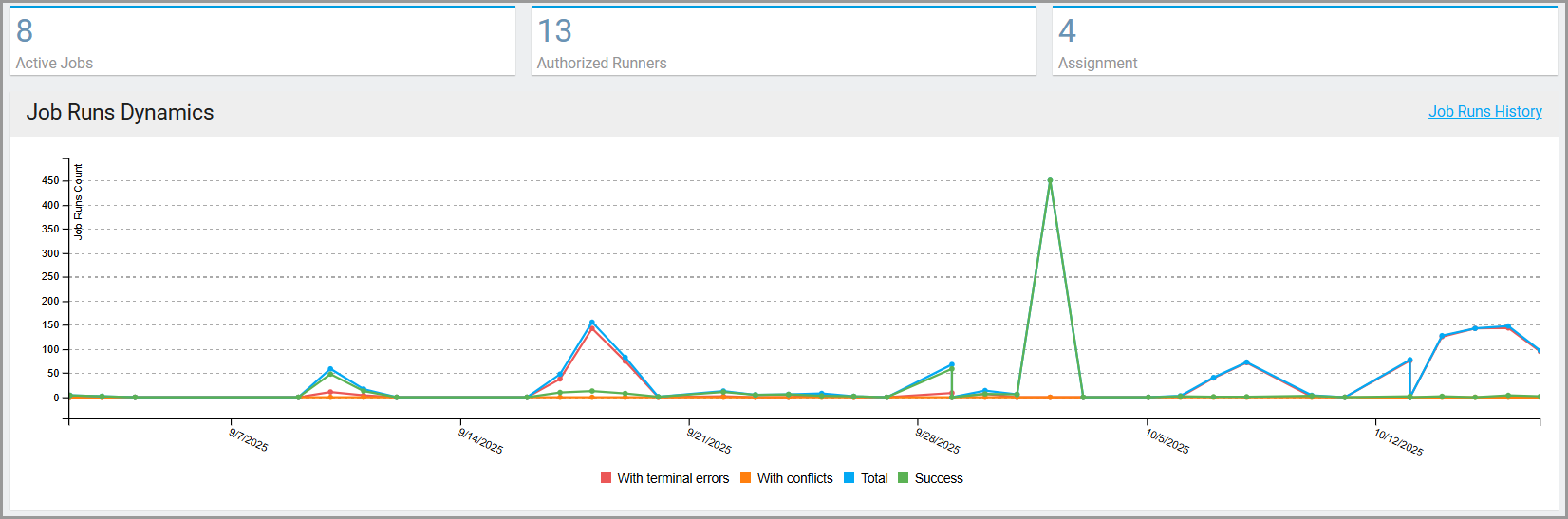
At the top, a count of all Active Jobs, Authorized Runners, and Assignments is shown.

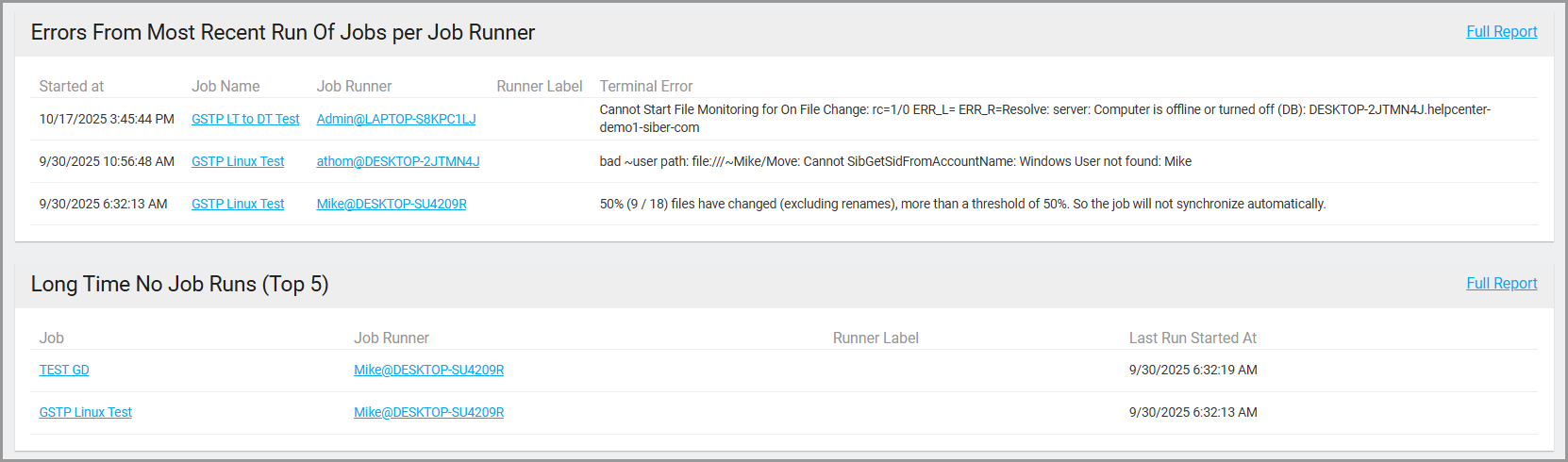
Below, two fields display: a list of job runs that ran with errors and a list of jobs that have not run in X number of days (the number of days can be configured in the Settings tab).
Finally, an analysis of all active jobs is shown relating to terminal errors, conflicts, and successes.
Getting Started
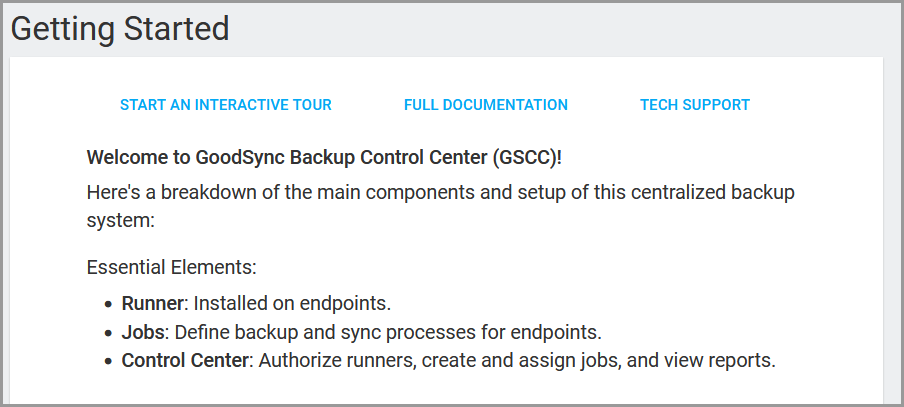
The “Getting Started” tab offers an overview of Control Center and its core features.
Essential Elements:
- Runner: Installed on endpoints to execute tasks.
- Jobs: Define backup and synchronization processes for endpoints.
- Control Center: Manages runner authorization, job creation/assignment, and reporting.
Runners
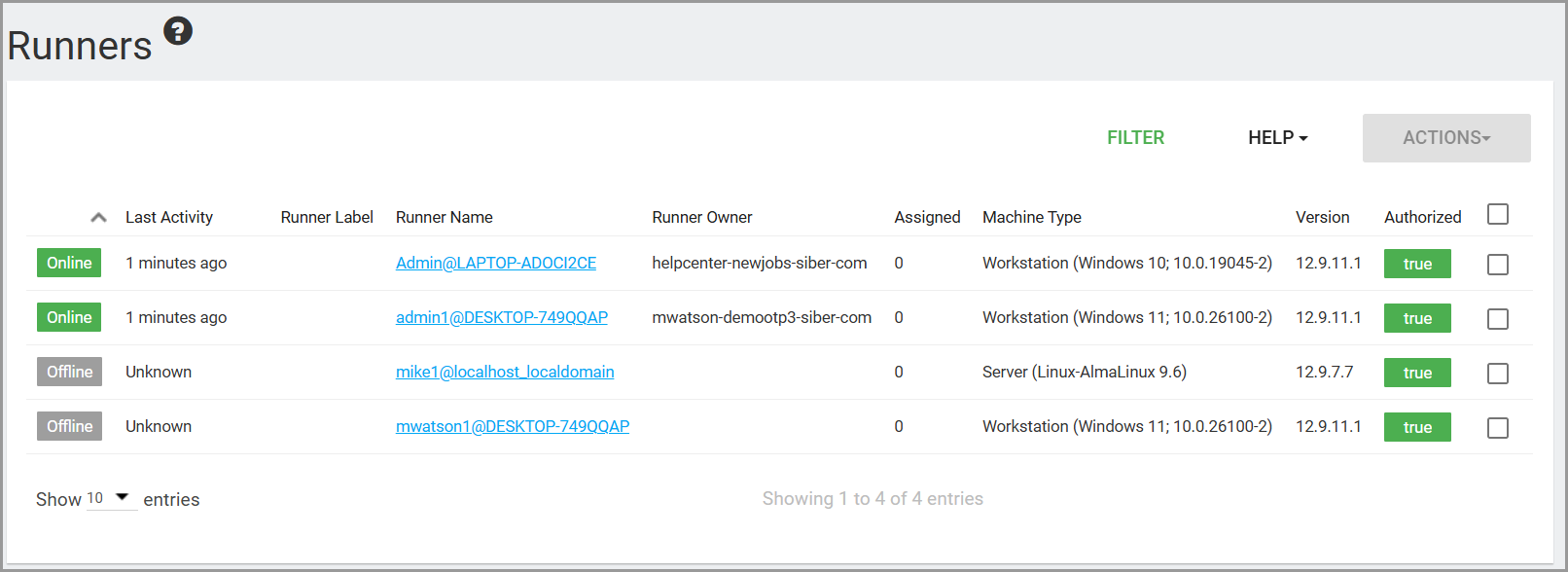
When a device is onboarded to a company, it is represented as a runner. A runner is a user on a particular device, denoted with the syntax user@device.
Jobs
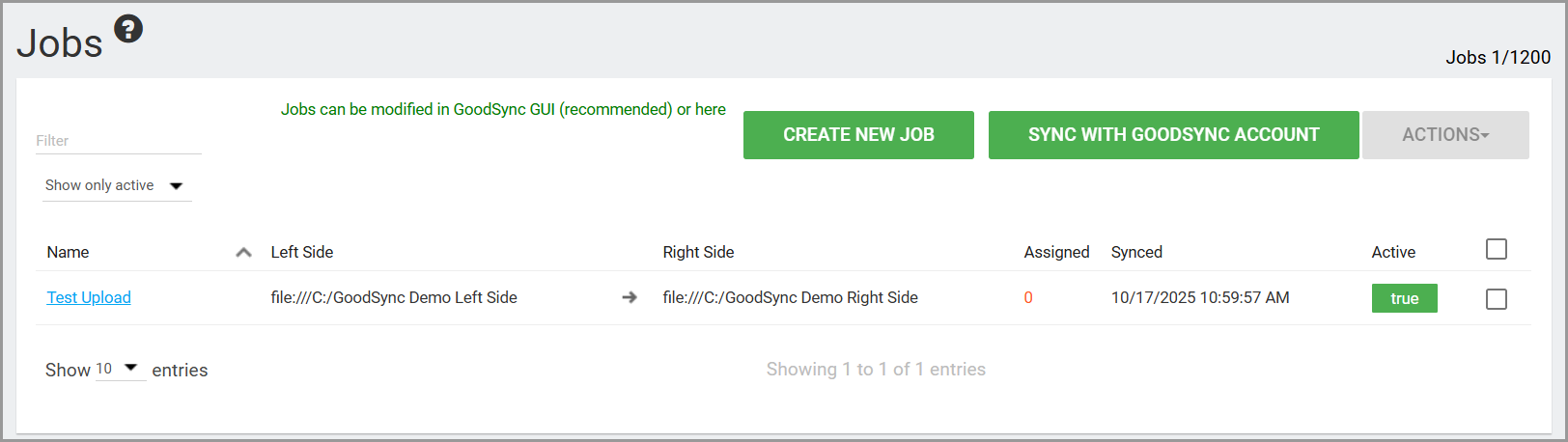
A list of all created jobs can be found under the Jobs tab.
Server Accounts
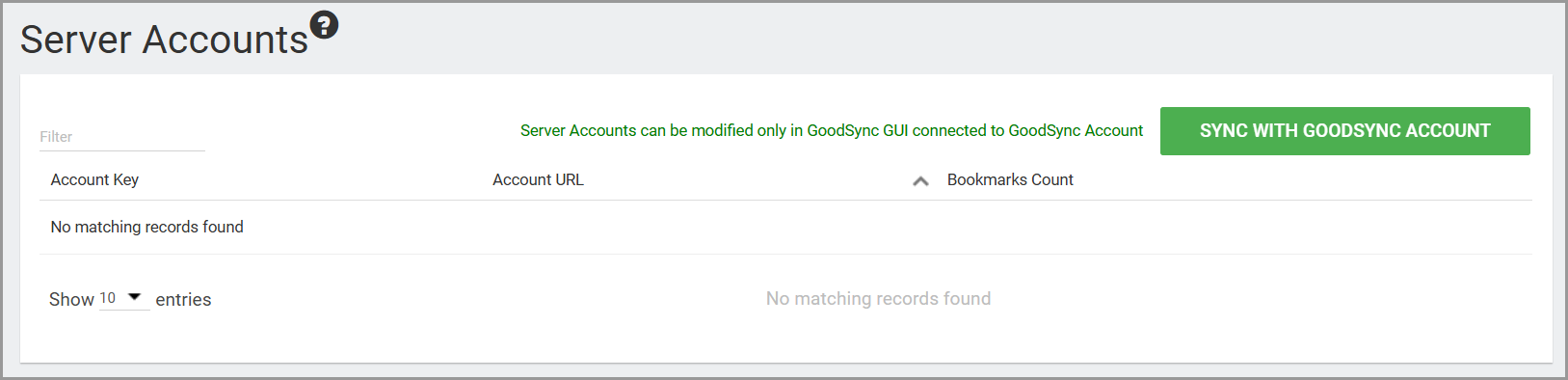
Server Accounts will display all accounts that have been uploaded to Control Center. For example, for cloud services that require browser authentication, these authentications may be uploaded for use in Control Center jobs from the local GoodSync application. Those authentications will be listed here.
Job Runs
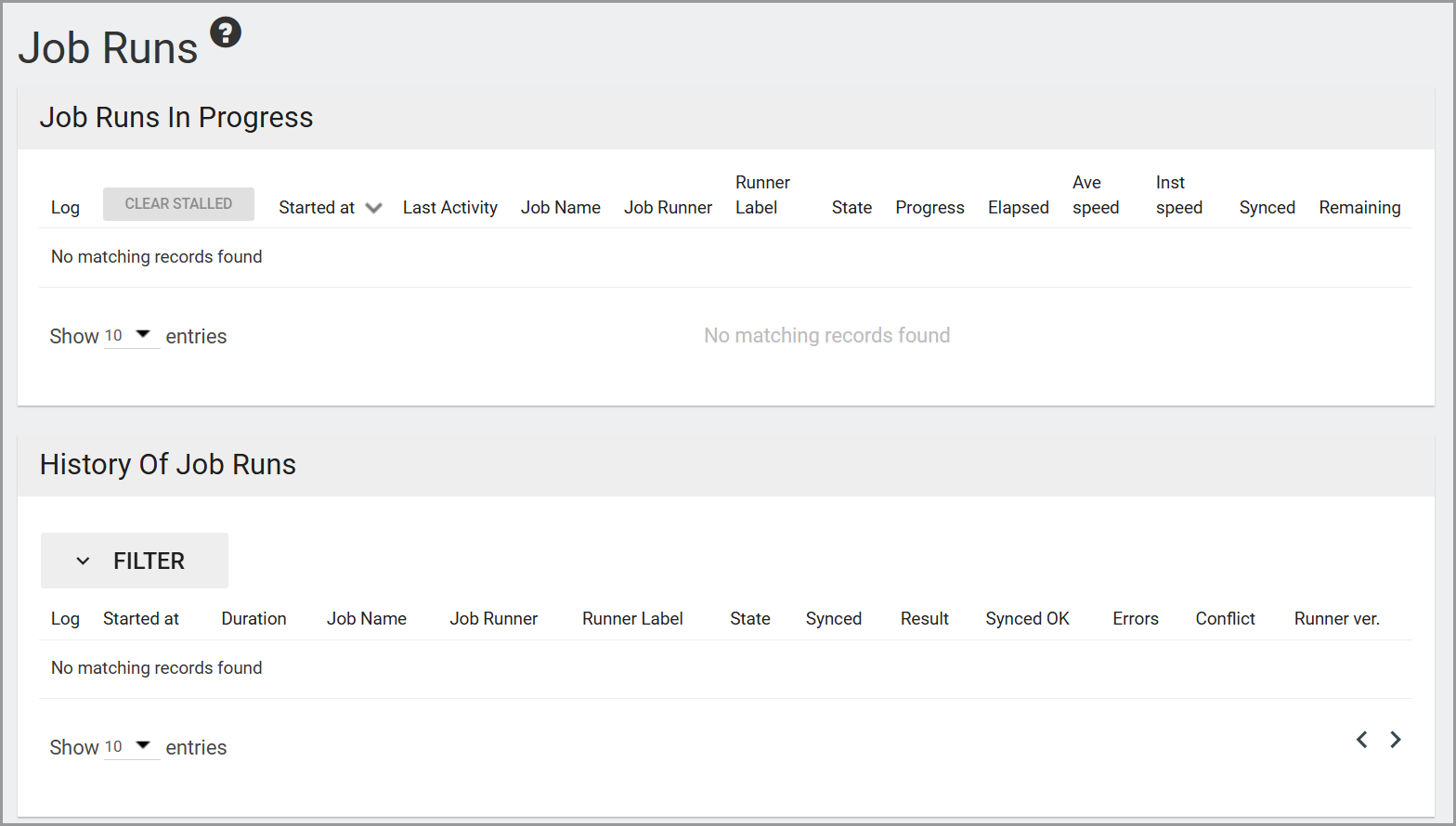
The Job Runs tab displays both completed and active jobs.
Reports
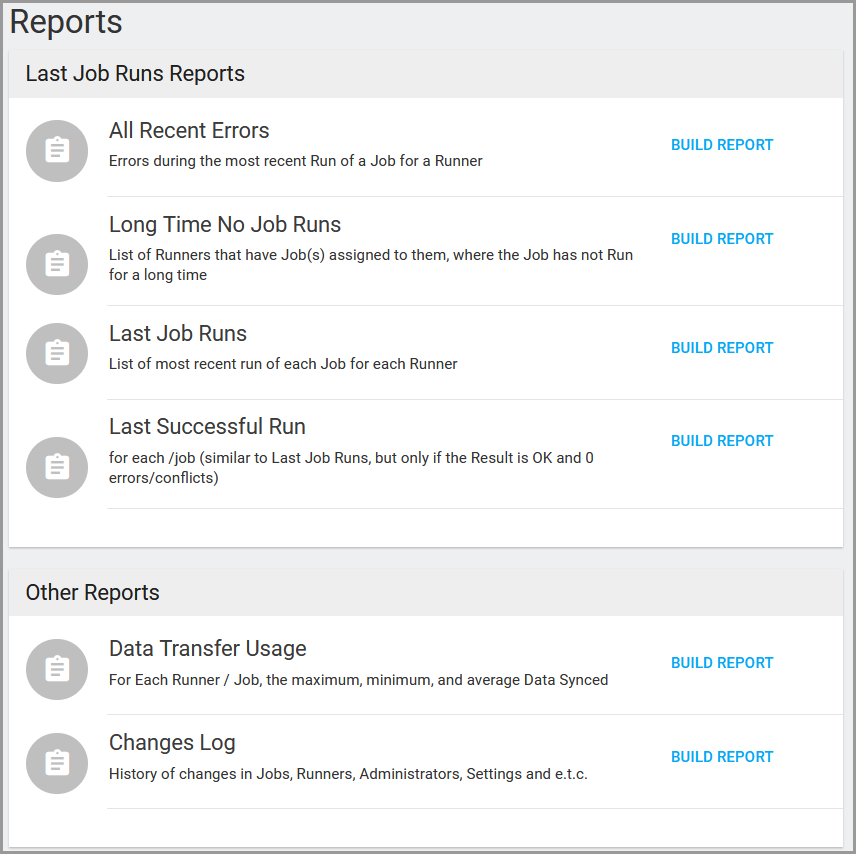
The Reports tab enables admins to establish statistical baselines of their environments by analyzing selected data sets.
Administrators
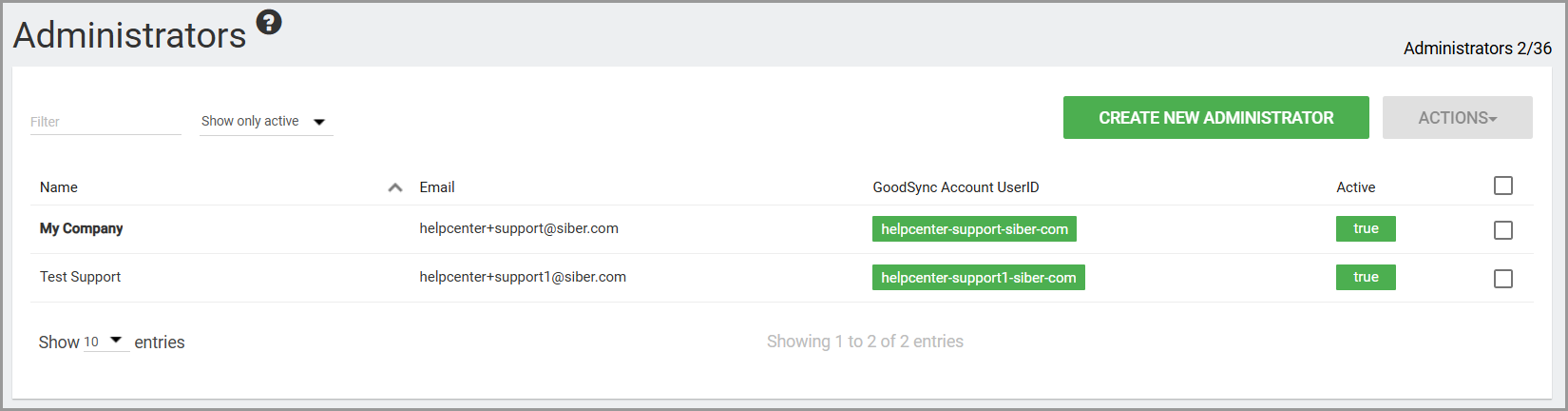
In the Administrators tab, you may configure the number of admins that can access the Control Center to manage the company.
Settings
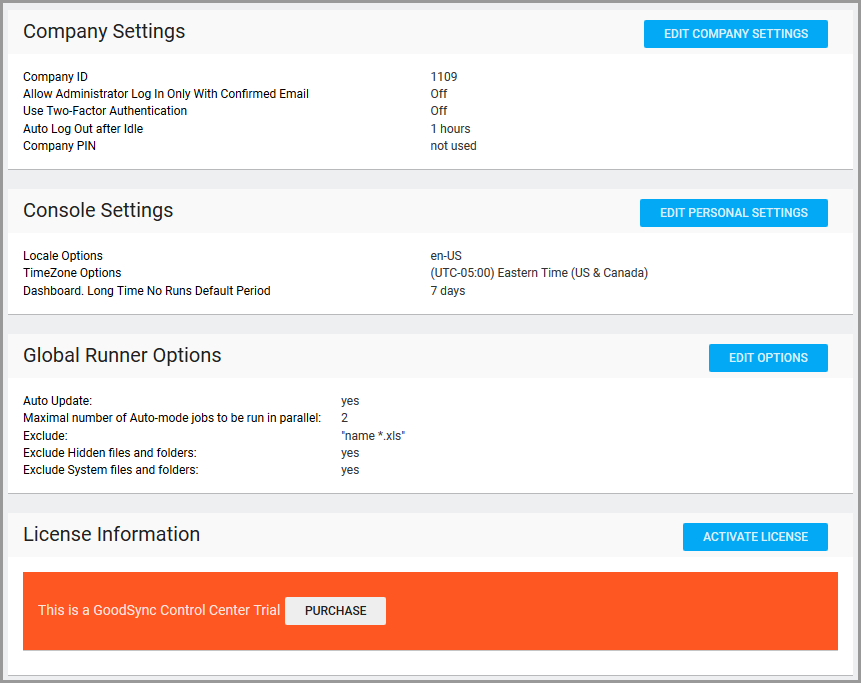
Options relating to Control Center behavior and license information can be found via the Settings tab.
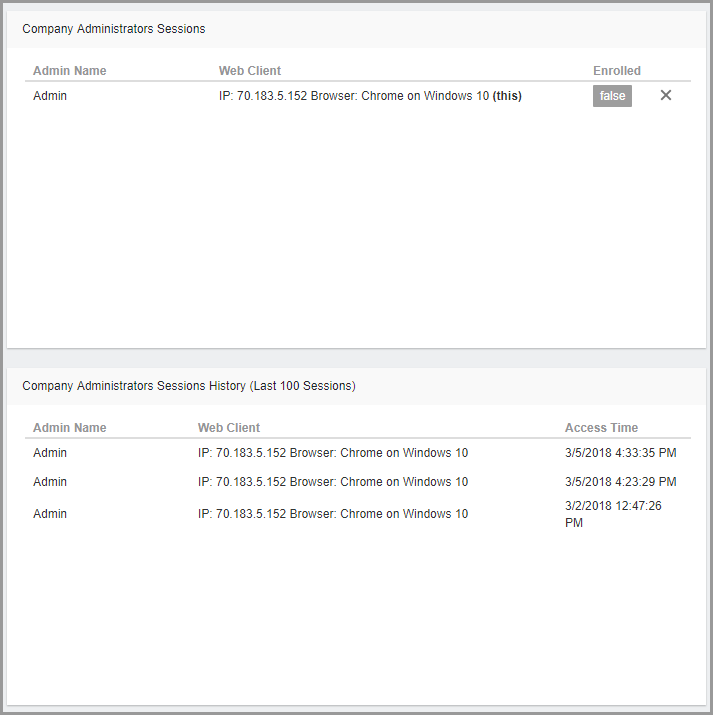
You may also track administrator sessions, activity, and login behavior here.
Documentation
The documentation tab links to the GoodSync Control Center Manual for user reference: https://www.goodsync.com/goodsync-control-center-manual.


