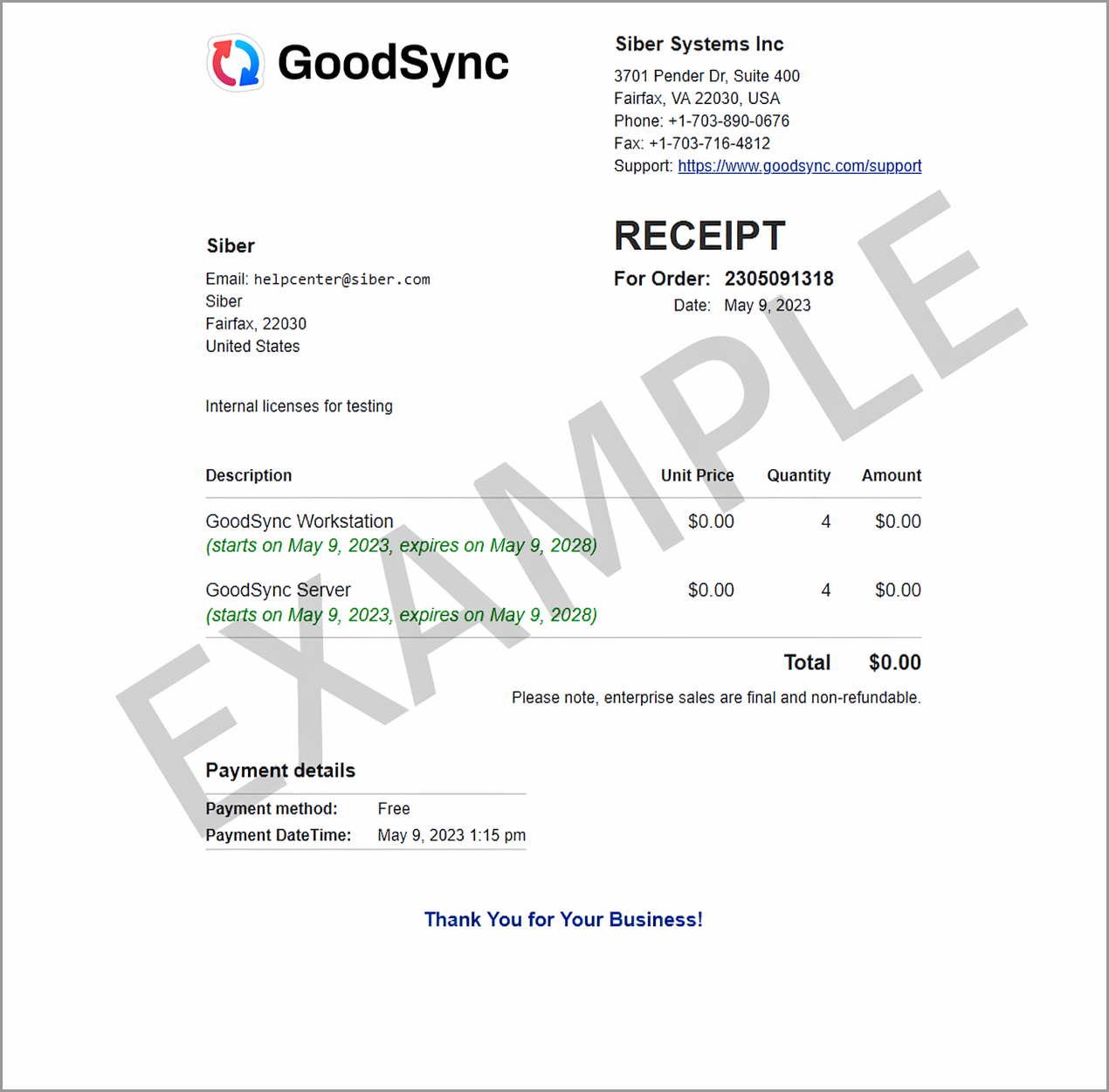
To view a receipt of your GoodSync purchase, follow these instructions:
- Open your browser and go to the GoodSync Account Login page.
Sign in using your GoodSync account email address and password.
Note: If your device is already activated under the same GoodSync account used for billing, you can also access your account directly within the application:
Windows: Tools > Account Manage
macOS: GoodSync > Account Manage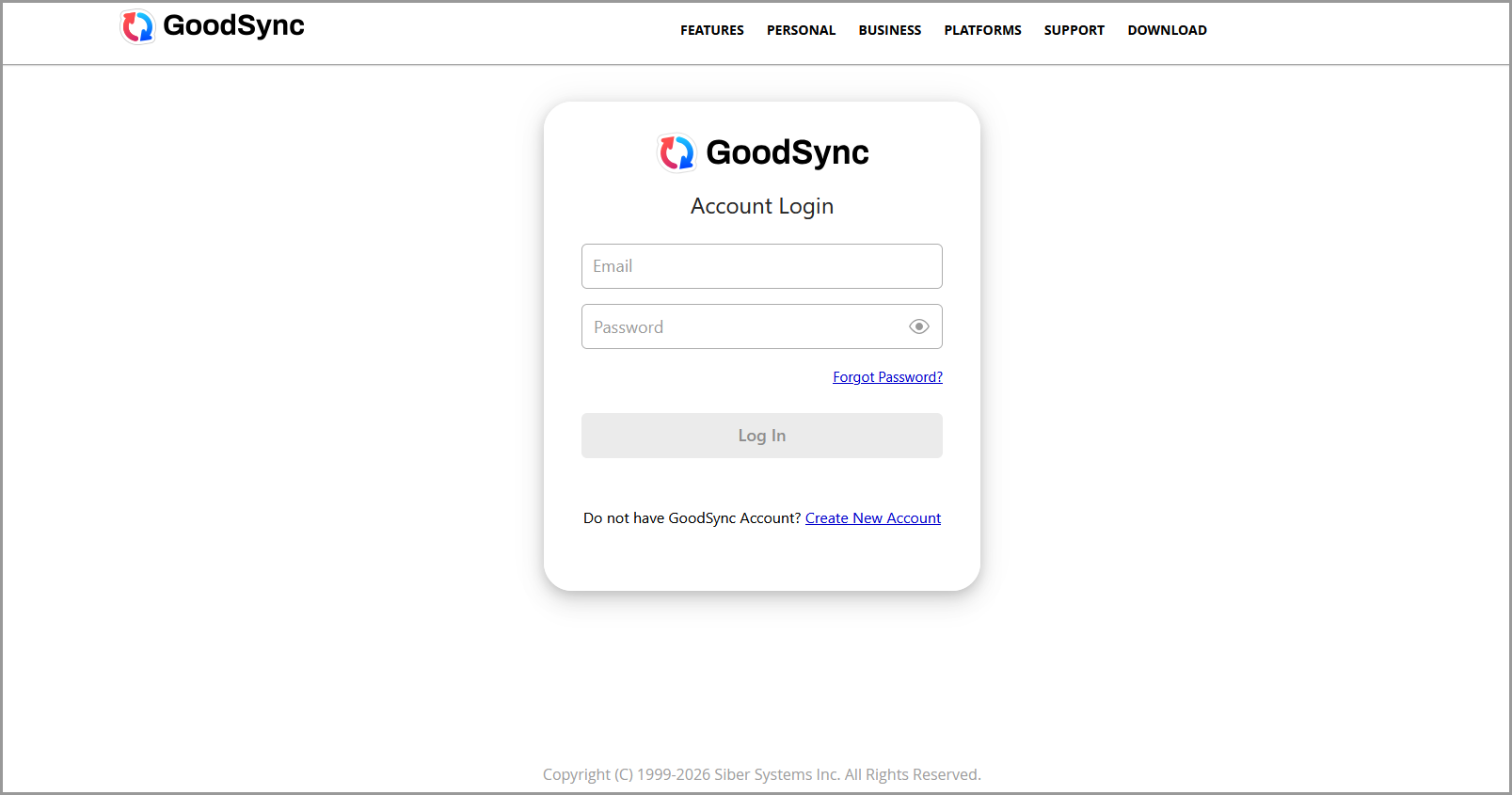
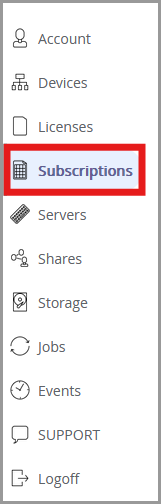
- Click on the Subscriptions tab to view all active subscriptions assigned to your account.
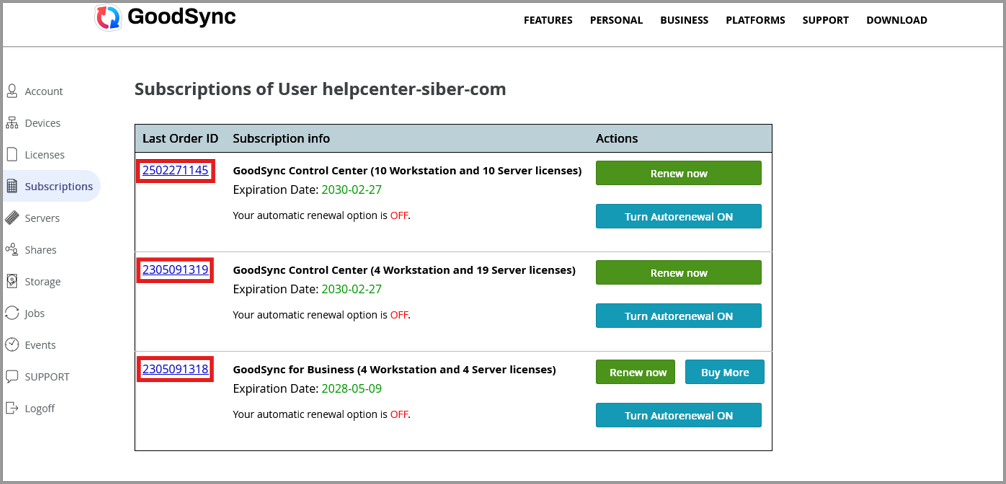
- Click on the Order ID hyperlink next to the order you are looking for to view the receipt.
- The receipt will open in a new browser tab. Right-click on the receipt and select “Save As” to download a copy to your device for your records. Below is an example of how the receipt will appear.