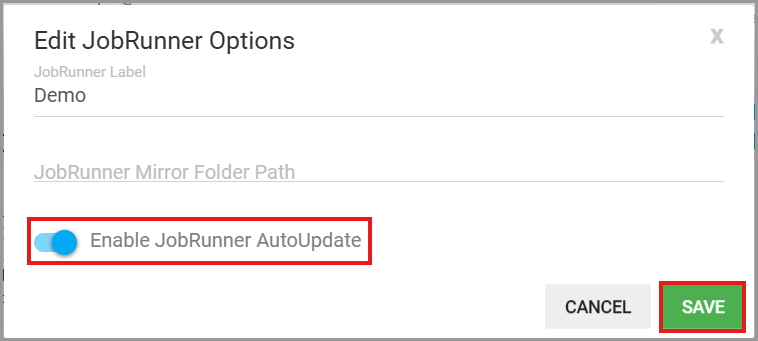
Each GoodSync Control Center Runner includes an option to enable or disable automatic updates for that specific Runner.
This setting is available under each Runner itself, Edit JobRunner Options.
Use the Enable JobRunner AutoUpdate option to control whether the selected Runner is updated automatically.
When enabled, the Runner automatically updates to the latest available version. When disabled, the Runner remains on its current version until it is updated manually.
This option allows administrators to control when updates are installed and maintain version consistency across Runner devices when needed.
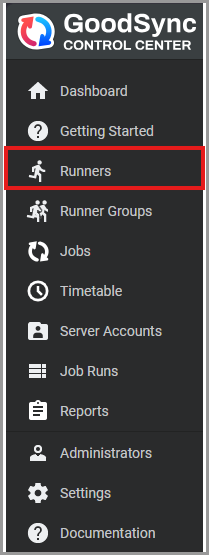
- Click the Runners tab.
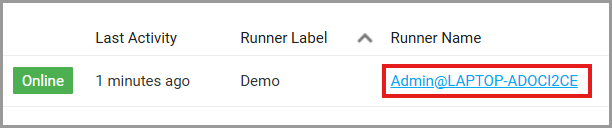
- Click the Runner name hyperlink.
- Click EDIT JOBRUNNER OPTIONS in the upper-left corner of the Runner page.

-
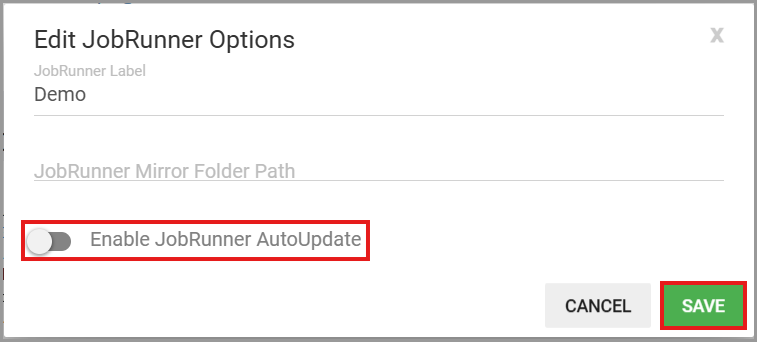
Turn Enable JobRunner AutoUpdate on or off for the selected Runner. Then, click SAVE.
AutoUpdate disabled (default):
AutoUpdate enabled: